

Welcome to Mr.Forex's guide. MetaTrader 5 (MT5) is a powerful next-generation trading platform, but "logging in" remains the biggest pain point for beginners.
Many people install the software, enter the correct account and password, but see a red icon (authorization failed) in the bottom right corner, or simply can't find their broker's server.
Don't worry, this is usually just a small configuration misunderstanding. This guide focuses specifically on the MT5 PC version and will take you step-by-step through the login process.
 After filling this in and clicking "OK", if everything is correct, you will see the connection status turn green in the bottom right corner.
If you don't see it, click "View" in the main menu, then select "Navigator".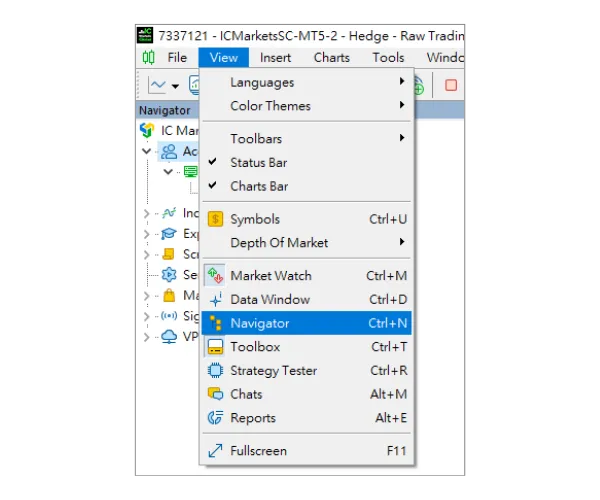
 A window will pop up with a search box in the middle (displaying "add new company...").
Enter your broker's name (e.g., "IC Markets"), then click "Find your company".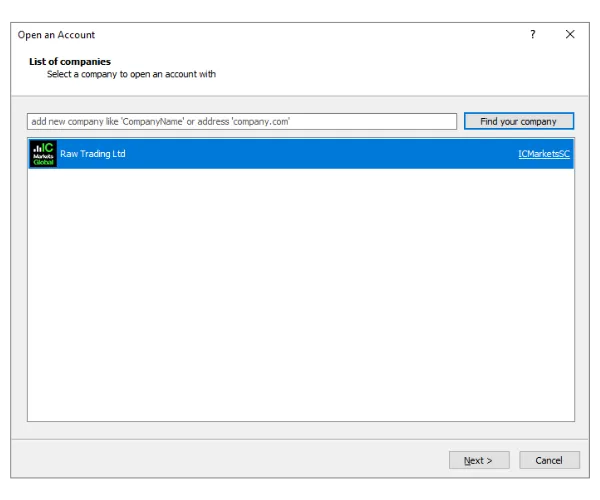
After finding your broker, click on it, and your server list will be updated in the software. Now you can return to the standard login process to log in.
This is definitely not an issue with the read-only password (read-only passwords can log in successfully), but rather due to the following reasons:
Many people install the software, enter the correct account and password, but see a red icon (authorization failed) in the bottom right corner, or simply can't find their broker's server.
Don't worry, this is usually just a small configuration misunderstanding. This guide focuses specifically on the MT5 PC version and will take you step-by-step through the login process.
MT5 PC Login Process
Step 1: Open the Login Window
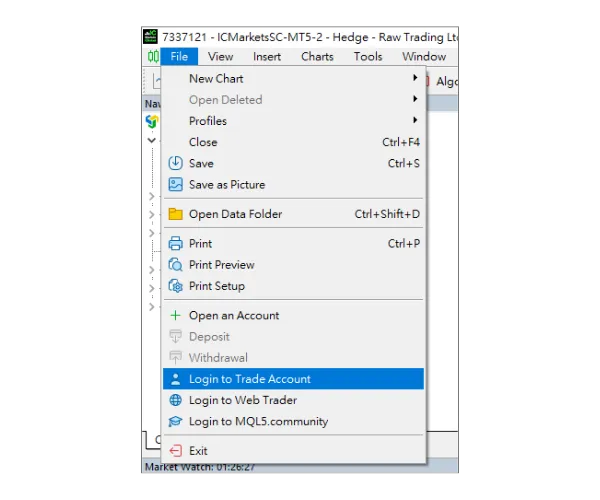
First, open your MT5 PC software. Click "File" in the top-left main menu. In the dropdown menu, select "Login to Trade Account".
Step 2: Enter Login Information
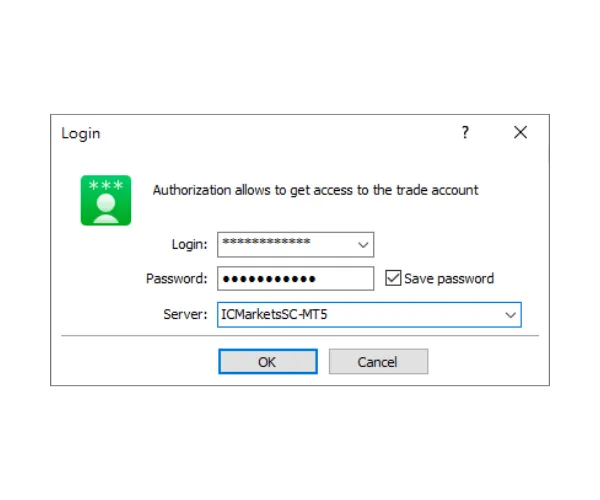
After clicking, a login window will appear. Please fill in the following:- Login: Your trading account number.
- Password: Your "Master Password".
- Server: Click the dropdown menu and select your broker's server.
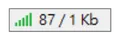
After filling this in and clicking "OK", if everything is correct, you will see the connection status turn green in the bottom right corner.Troubleshooting Login Failures
If you are stuck, in Mr. Forex's experience, the problem is usually due to an "outdated server list" or "incorrect password entry".Scenario A: "I can't find my server in the dropdown list!"
This is the most common problem in MT5. If your broker's server is not in the list, you need to manually search for and add it. We solve this via the "Navigator" panel.Step 1: Open the Navigator Panel
Ensure your "Navigator" panel is open (usually on the left side of the screen).If you don't see it, click "View" in the main menu, then select "Navigator".
Step 2: Search for Broker
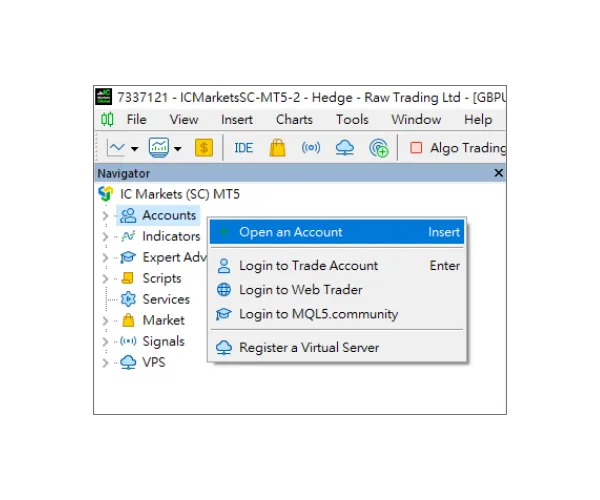
- In the Navigator panel, right-click on "Accounts".
- Select "Open an Account".
A window will pop up with a search box in the middle (displaying "add new company...").Enter your broker's name (e.g., "IC Markets"), then click "Find your company".
After finding your broker, click on it, and your server list will be updated in the software. Now you can return to the standard login process to log in.
Scenario B: "It shows a 'Red Icon (Authorization Failed)'!"
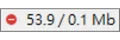
If a red prohibition icon appears in the bottom right corner after logging in (as shown below), it means the server has rejected your login.This is definitely not an issue with the read-only password (read-only passwords can log in successfully), but rather due to the following reasons:
- Incorrect password or login entered (Most Common):
Please carefully check your "Master Password". Is it case-sensitive? Did you accidentally copy a "space"? This is the main cause of 90% of errors. - Wrong server selected:
Is your account "Live" or "Demo"?
Please note: even if the broker name is correct (e.g., IC Markets), if the server number suffix is wrong (e.g., selecting ICMarkets-MT5 instead of ICMarketsSC-MT5), login will fail.











 繁體中文
繁體中文  العربية
  বাংলা
বাংলা  简体中文
简体中文  香港中文
香港中文  Čeština
  Dansk
Dansk  Nederlands
  English
  Français
  Deutsch
  Ελληνικά
  हिन्दी
  Magyar
  Bahasa Indonesia
  Italiano
  日本語
日本語  한국어
한국어  Bahasa Melayu
  Norsk bokmål
  Polski
  Português do Brasil
  Português
  Română
  Русский
  Español de Argentina
  Español de México
  Español
  Svenska
  ไทย
ไทย  Türkçe
  Українська
  اردو
اردو  Tiếng Việt