
1. Account Login & 4 Key Workspace Areas
Navigating the layout efficiently is essential for seamless charting and rapid order execution.Step-by-Step Guide:
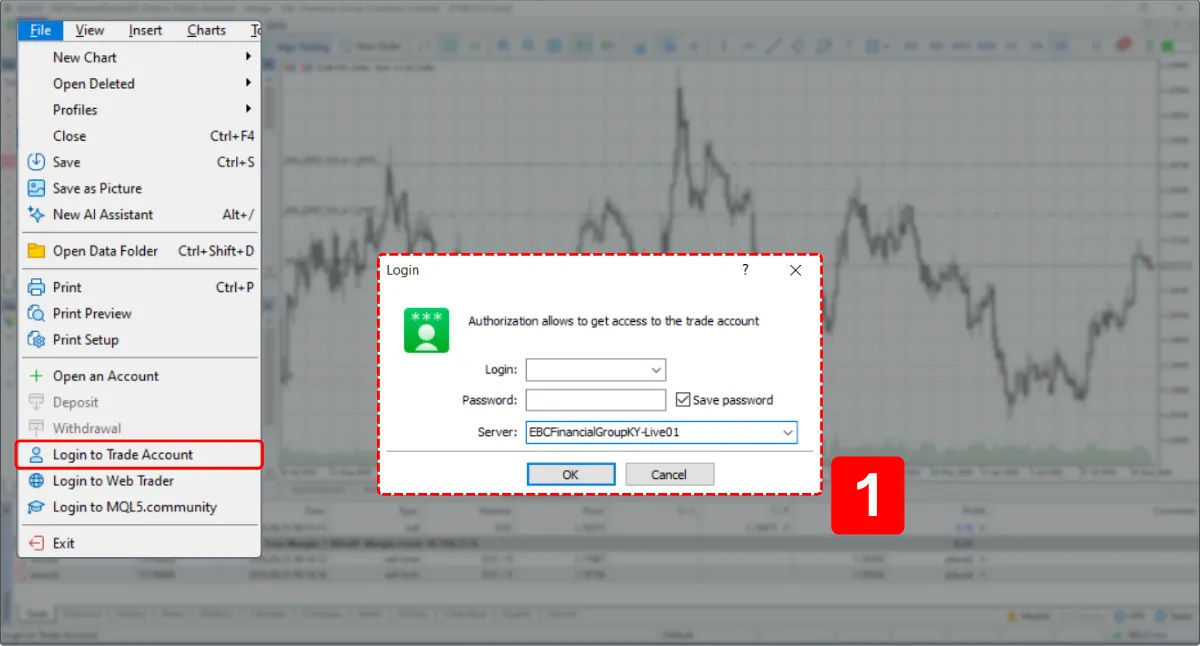
- Account Login: Click top menu File → Login to Trade Account. Enter your Login ID, Password, and Server name provided by your broker.
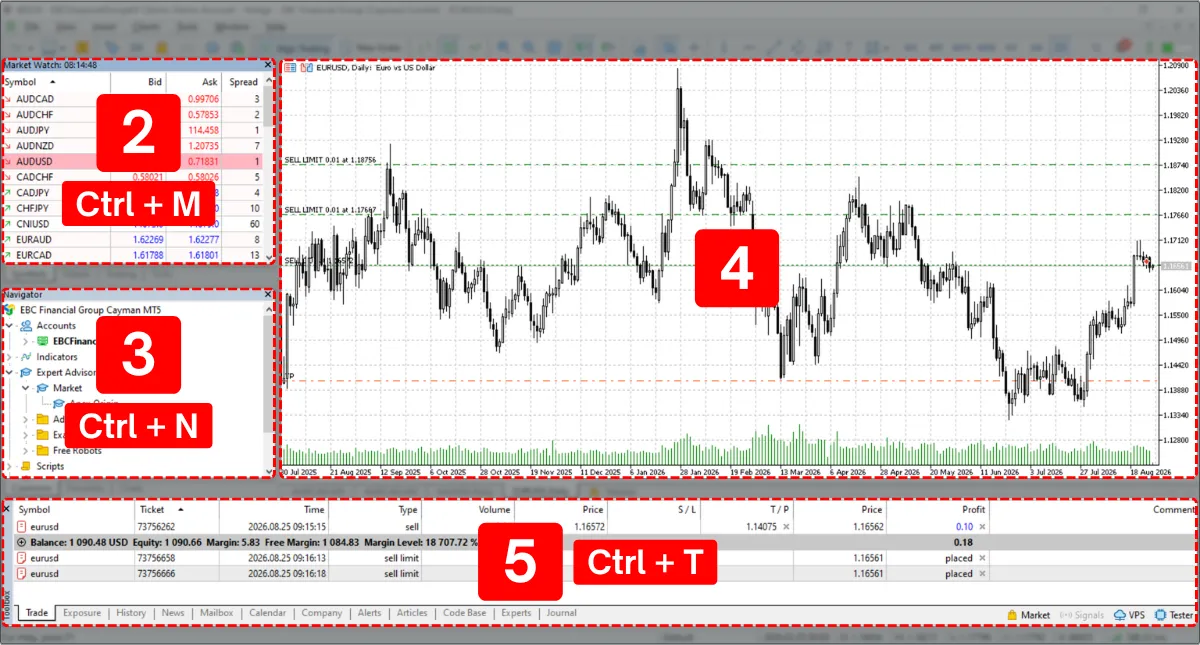
- Market Watch: Top-left panel displaying real-time Bid/Ask prices for available assets.
- Navigator: Bottom-left panel to manage accounts, apply indicators, and run Expert Advisors (EAs).
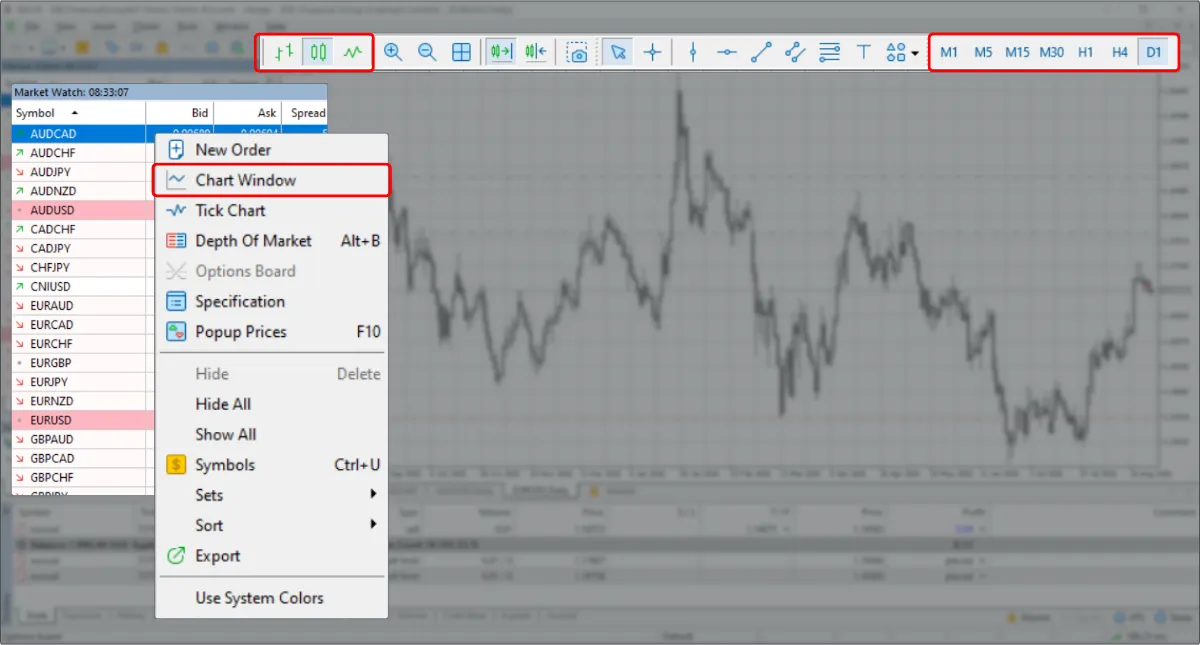
- Chart Window: The primary workspace showing price candlesticks for technical analysis. Drag any asset from Market Watch into this window to open its chart, or right-click the asset and select Chart Window.
- Toolbox: Bottom panel tracking open positions, pending orders, equity, and account history.
Beginner Tip:
Ensure you select the correct Server name (Live vs. Demo). If server or password details are wrong, MT5 will display "No connection" or "Invalid account" at the bottom-right.2. Chart Customization & Technical Indicators
Customizing color schemes and applying technical indicators improves chart readability and trend identification.Step-by-Step Guide:
- Open & Adjust Charts: Right-click an asset in Market Watch and select Chart Window. Use the toolbar to switch timeframes (e.g., M15, H1, D1) and chart types (Bar, Candlestick, Line).
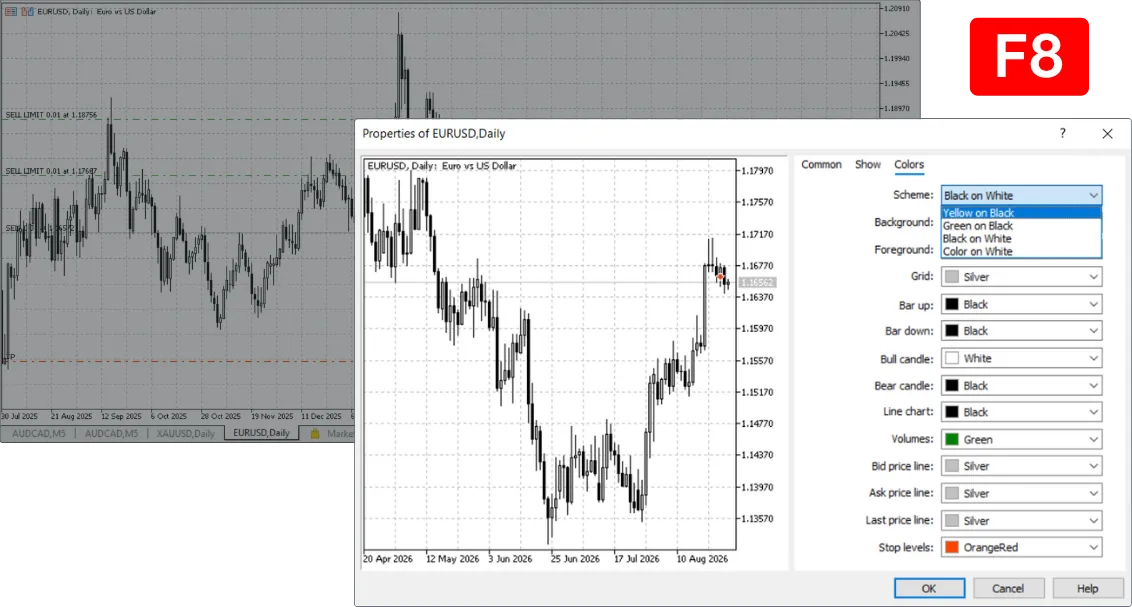
- Customize Colors: Press F8 on the chart or right-click and select Properties. Switch between light/dark themes and adjust candlestick colors.
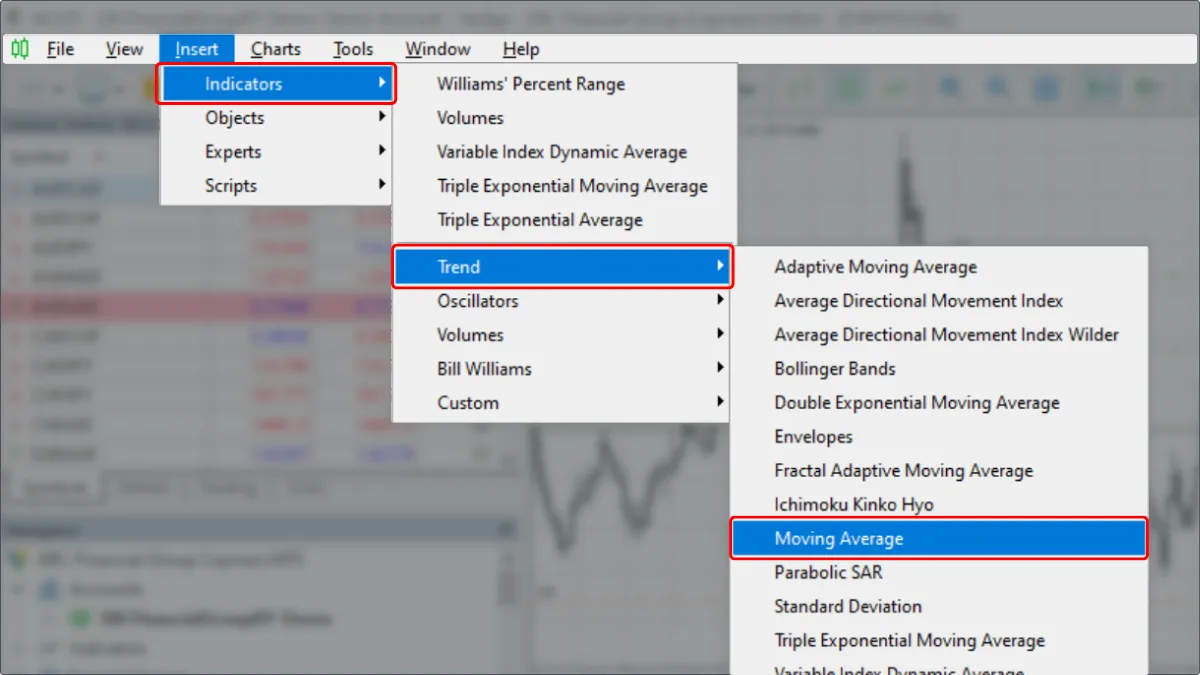
- Add Indicators: Click Insert → Indicators (e.g., Moving Average), adjust parameters, and click OK. Alternatively, drag indicators directly from the Navigator panel onto the chart.
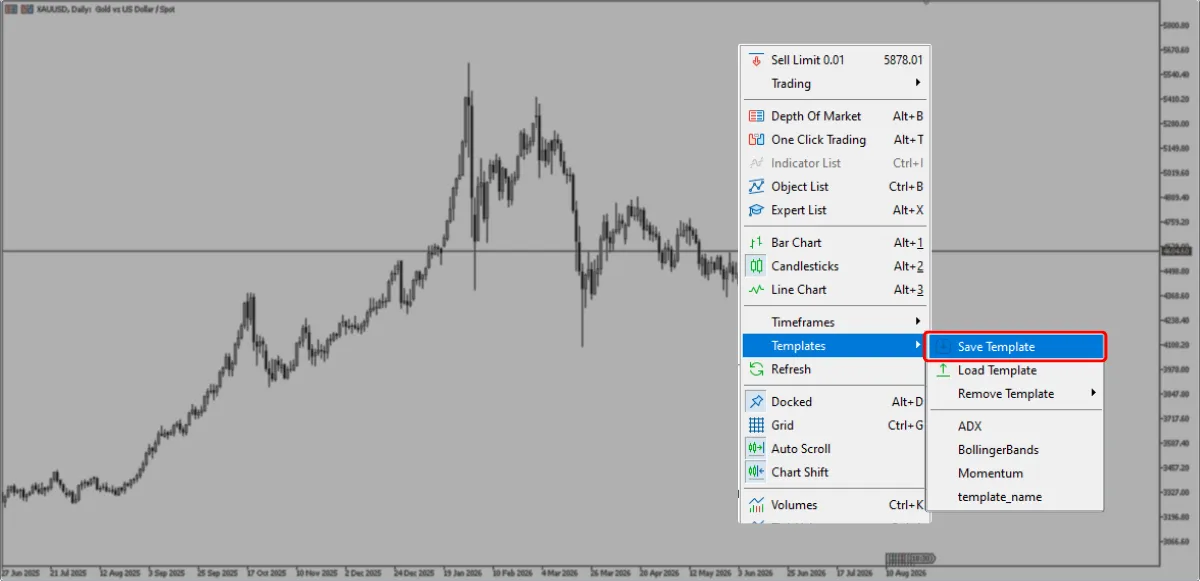
- Save Chart Templates: Right-click chart → Templates → Save Template. Apply this template to new charts to skip repetitive setups.
Beginner Tip:
Avoid cluttering charts with too many indicators. Stick to 2–3 key tools to prevent signal conflicts and analysis fatigue.3. One-Click Trading, SL/TP Setup & Closing Trades
Mastering fast One-Click Trading and visual SL/TP dragging ensures precise execution and intuitive risk control.Step-by-Step Guide:
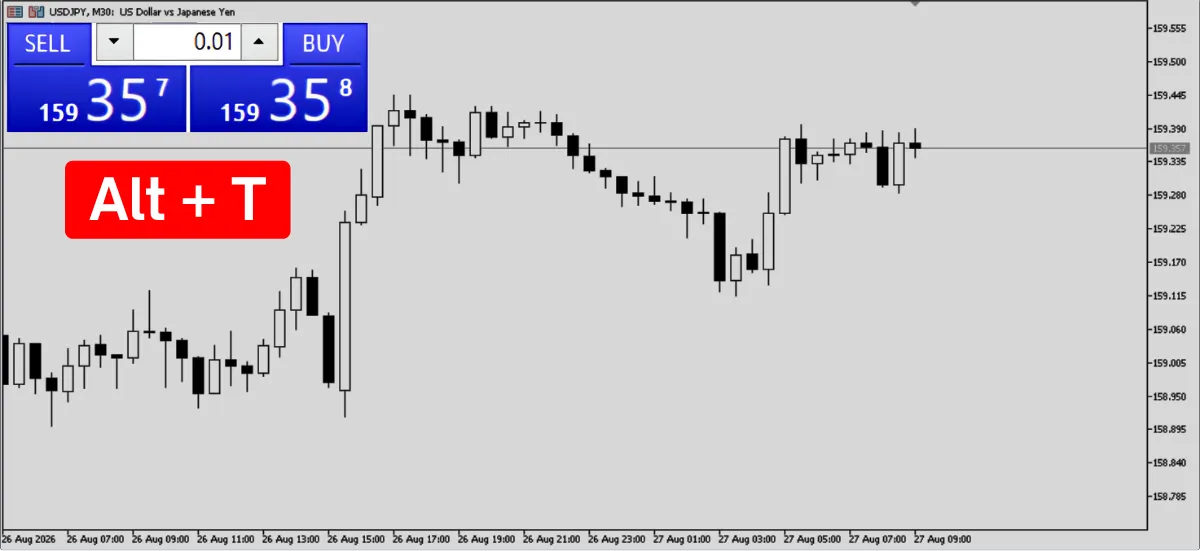
- One-Click Trading: Press Alt + T on the chart to display the trading panel. Enter lot size and click Sell or Buy for instant execution.
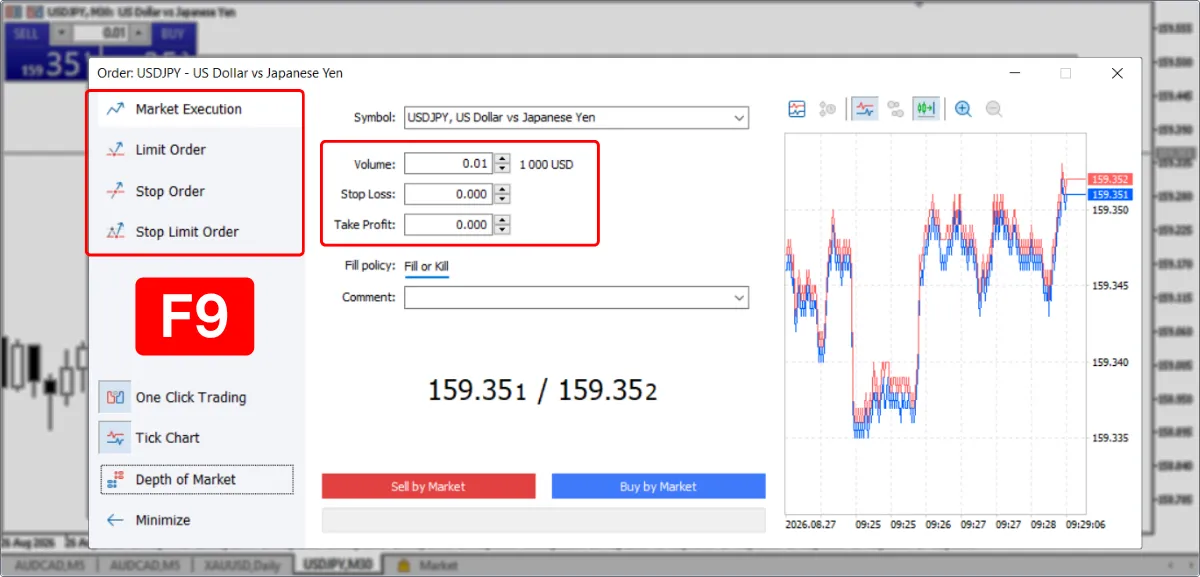
- Order Window (F9): Press F9 to open the full order window, where you can configure order type (Market/Pending), lot size, Stop Loss (SL), and Take Profit (TP).
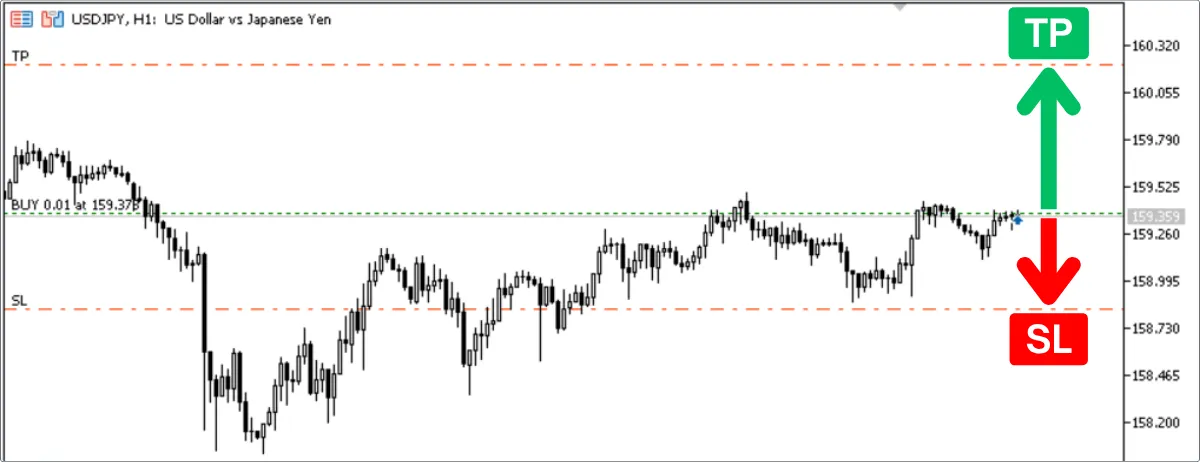
- Visual SL/TP Dragging: Once an order is open, a dashed position line appears on the chart. Left-click and drag this line up or down to place or modify SL and TP levels directly.
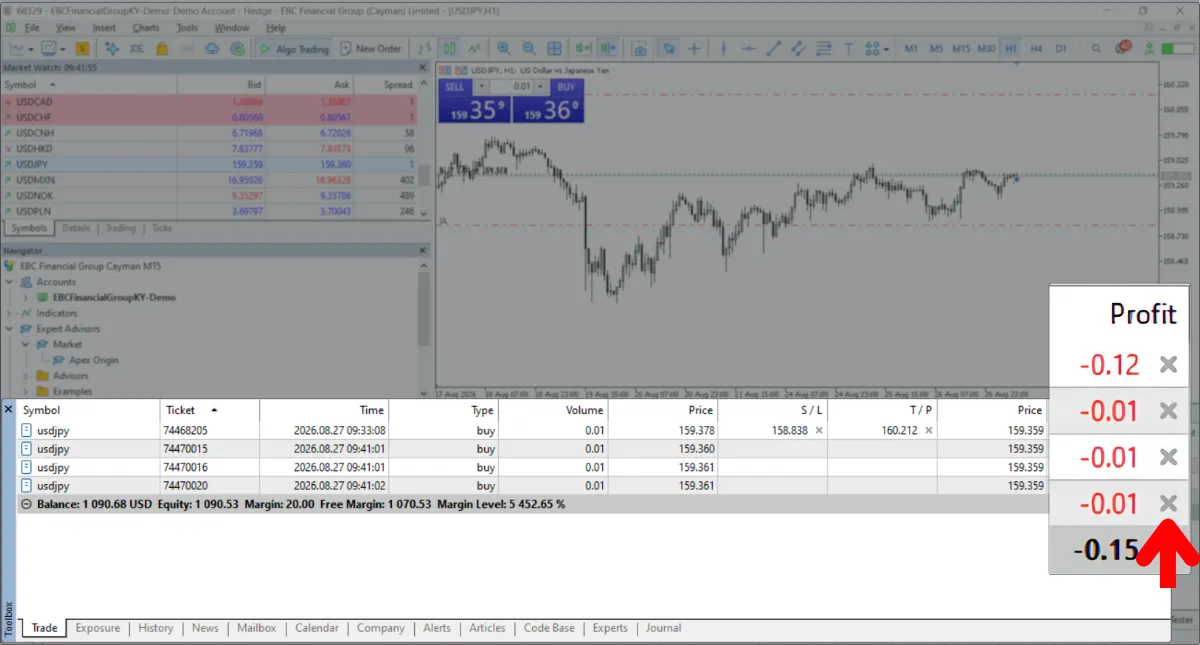
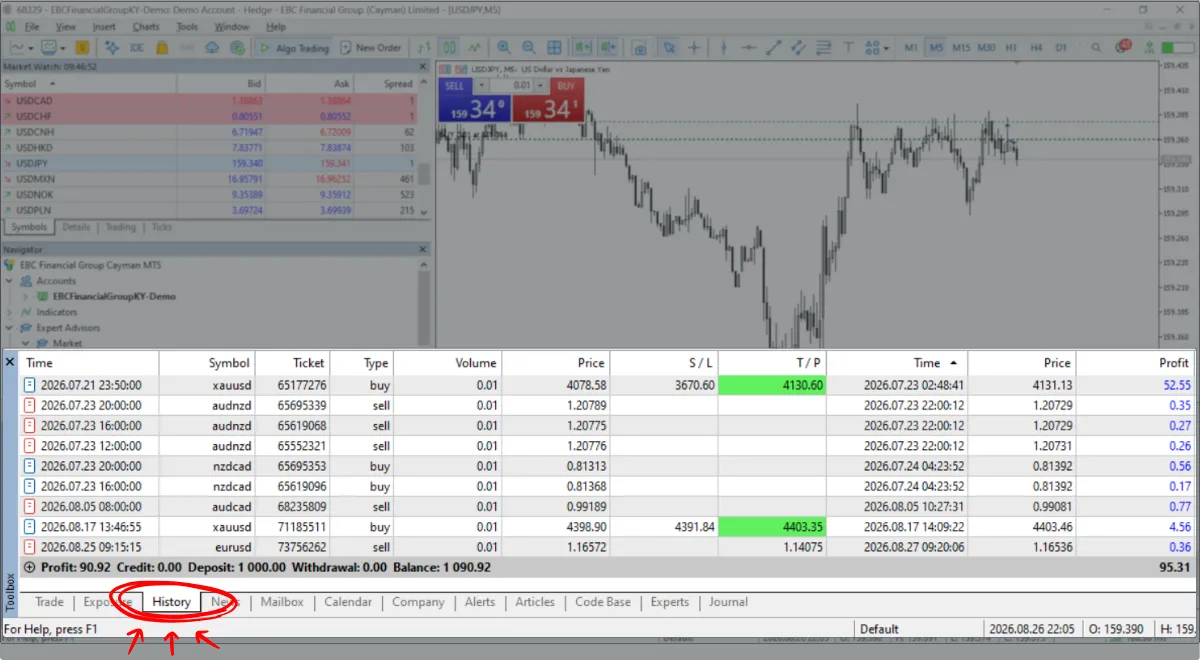
- Close Positions & View History: In the Toolbox "Trade" tab, click the "X" button next to a position to close it instantly. Review past performance under the "History" tab.
Beginner Tip:
- Enabling One-Click Trading requires accepting a disclaimer. Once activated, clicking Buy/Sell executes orders immediately without confirmation.
- When dragging SL/TP: For Buy orders, SL must be below and TP above the entry price. For Sell orders, SL must be above and TP below. Incorrect positioning will be rejected by the system.
4. Advanced Features: EA Market & Strategy Backtesting
Automated trading via Expert Advisors (EAs) and historical backtesting allow you to validate trading strategies without risking real capital.Step-by-Step Guide:
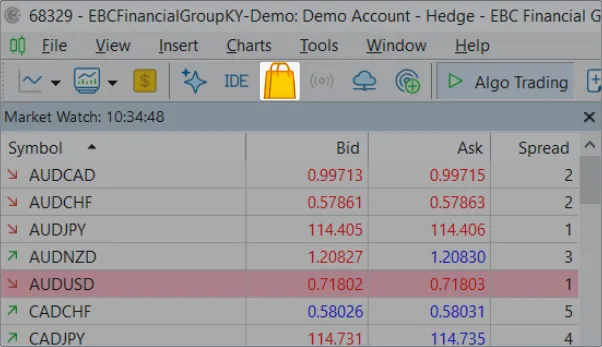
- MQL5 Market: Click the shopping bag icon in the toolbar to browse, test, or purchase free and paid EAs from global developers.
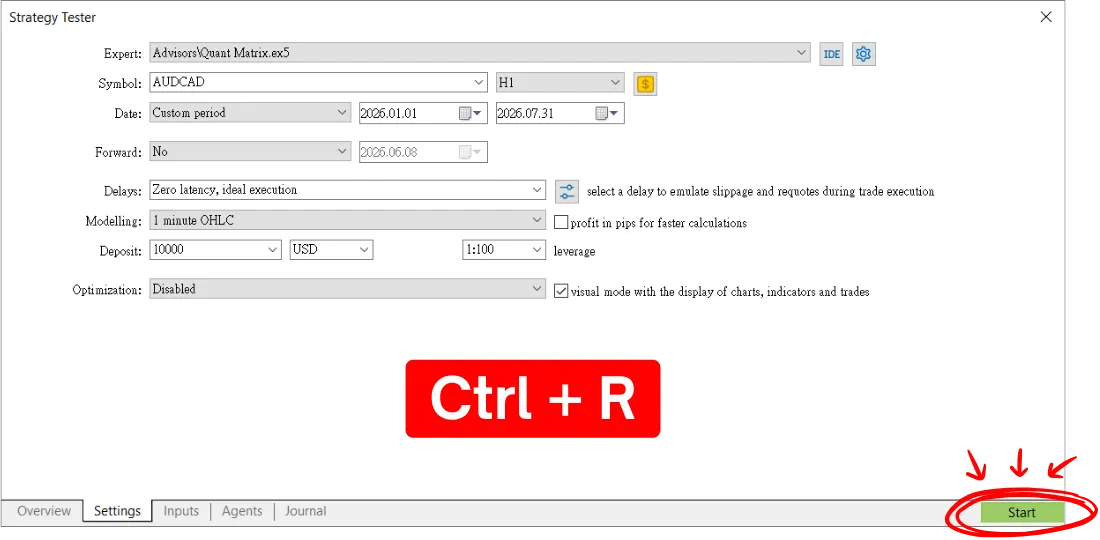
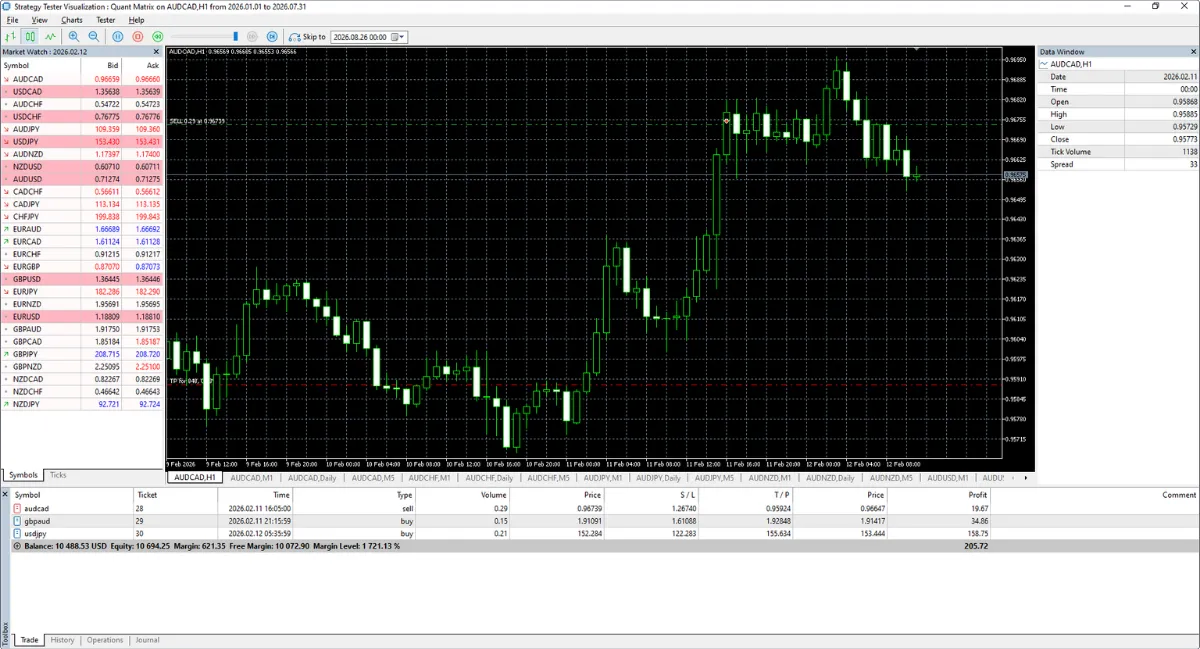
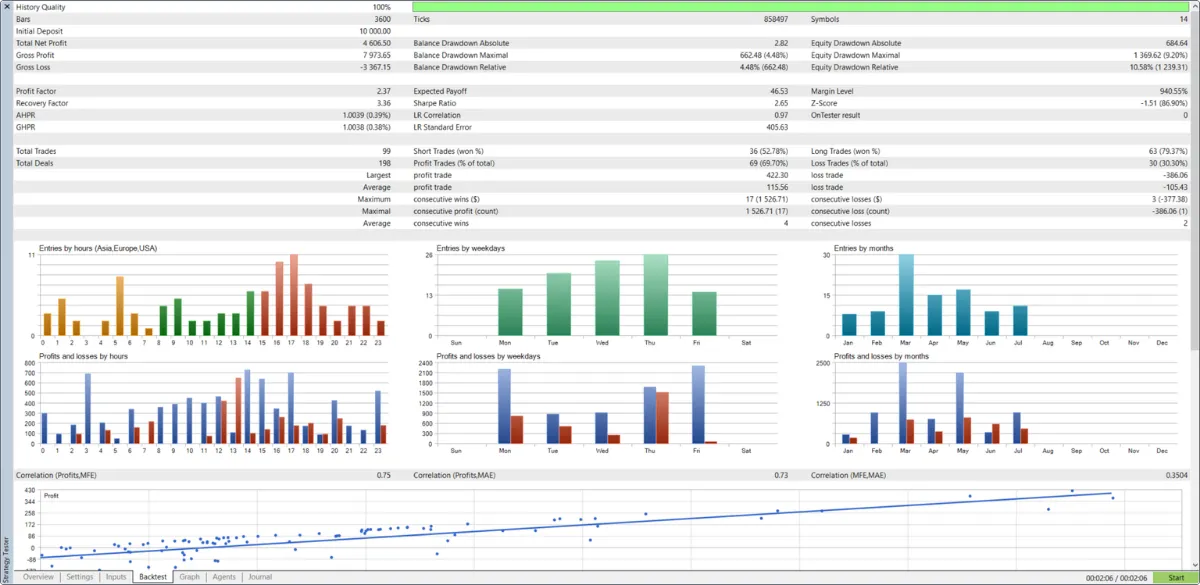
- Strategy Backtesting: Press Ctrl + R to open the Strategy Tester. Select an EA, currency pair (e.g., EURUSD), date range, and timeframe, then click Start to generate a backtest performance report.
Beginner Tip:
- Never deploy a newly acquired EA directly onto a live account. Always run historical backtests and forward-test on a Demo account for at least 1–3 months.
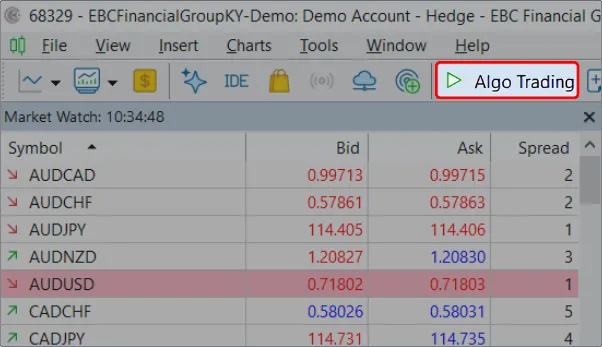
- To enable EA execution, make sure the "Algo Trading" button in the top toolbar is toggled ON (green).




 繁體中文
繁體中文  العربية
  বাংলা
বাংলা  简体中文
简体中文  香港中文
香港中文  Čeština
  Dansk
Dansk  Nederlands
  English
  Français
  Deutsch
  Ελληνικά
  हिन्दी
  Magyar
  Bahasa Indonesia
  Italiano
  日本語
日本語  한국어
한국어  Bahasa Melayu
  Norsk bokmål
  Polski
  Português do Brasil
  Português
  Română
  Русский
  Español de Argentina
  Español de México
  Español
  Svenska
  ไทย
ไทย  Türkçe
  Українська
  اردو
اردو  Tiếng Việt